Download ticket service
Contents
Short Step-by-step guide to send attachments
First, go to https://dl.example.com/ and authenticate with your username and password.
You should be presented with this page:
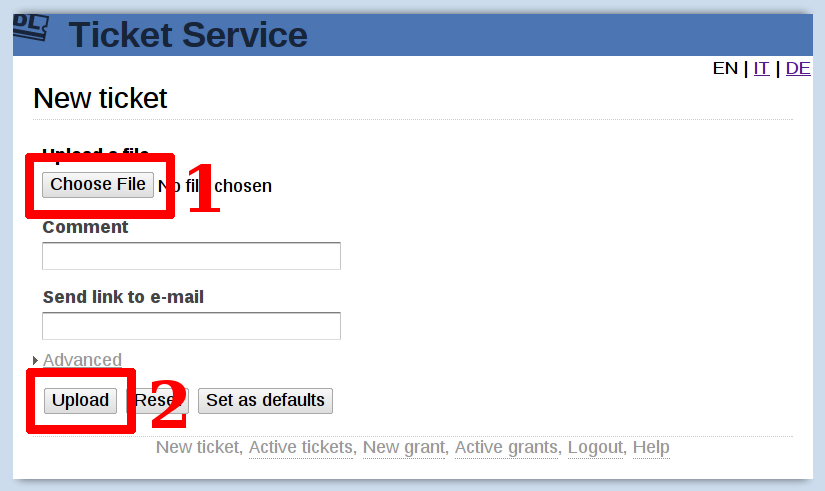
- Click on the button under "Upload File" (labelled either "Browse" or "Choose File") as outlined in the picture and pick the file you need to send.
- Click "Upload", and wait until the file is uploaded as shown:
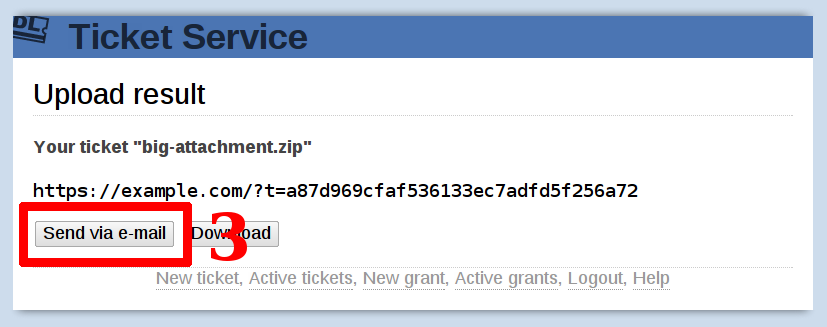
- Click "Send via E-Mail" to send an e-mail to someone, containing the link to the file you just uploaded.
By default, the recipient has one week to download the file before it is automatically cleaned up. You can change this behavior by setting some parameters before uploading.
You can see a list of files you have uploaded and manage them by clicking on the "List active tickets" button, at the bottom of the page.
Short Step-by-step guide to receive attachments
First, go to https://dl.example.com/ and authenticate with your username and password.
You should be presented with this page:
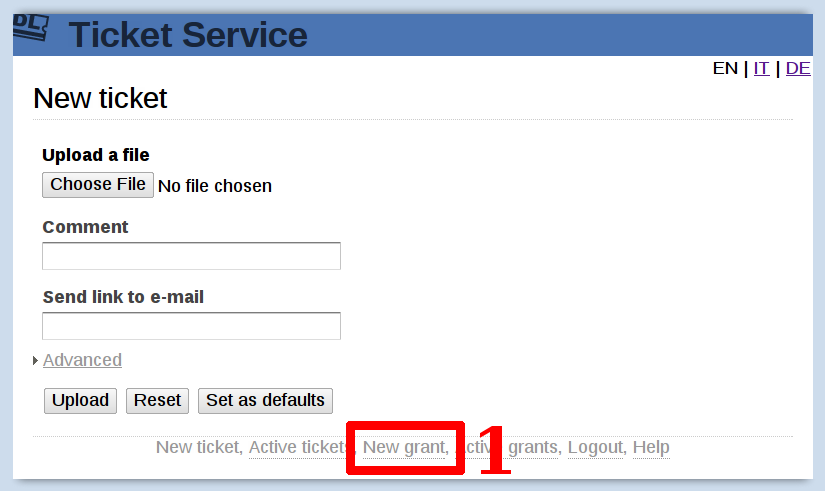
- Click on the "New grant" link at the bottom of the page to start a new grant:
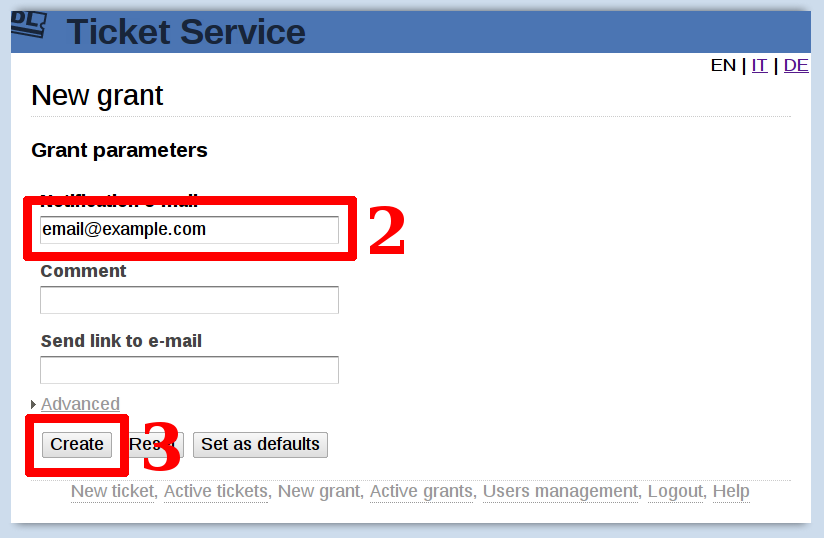
- Enter your email address.
- Click "Create" to generate an upload grant:
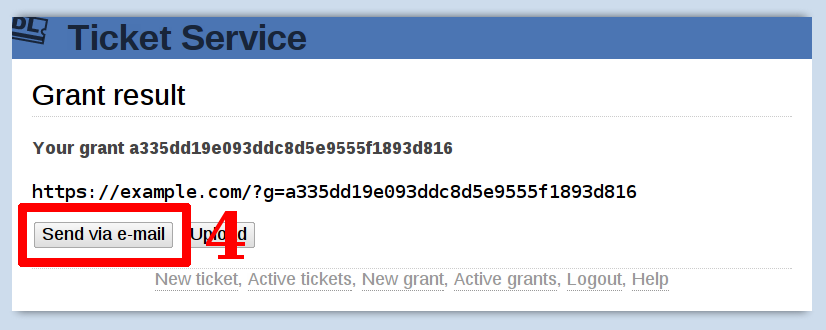
- Click "Send via E-Mail" to send an e-mail to someone, containing the link that will allow him to send you any file.
Your recipient simply needs to follow the instructions contained in the link itself. Once he uploads the file into the server, you will receive an email containing another link to the file just uploaded.
Advanced upload parameters
Before uploading a file, you can customize how the download and cleanup is performed by setting some "Advanced" parameters:
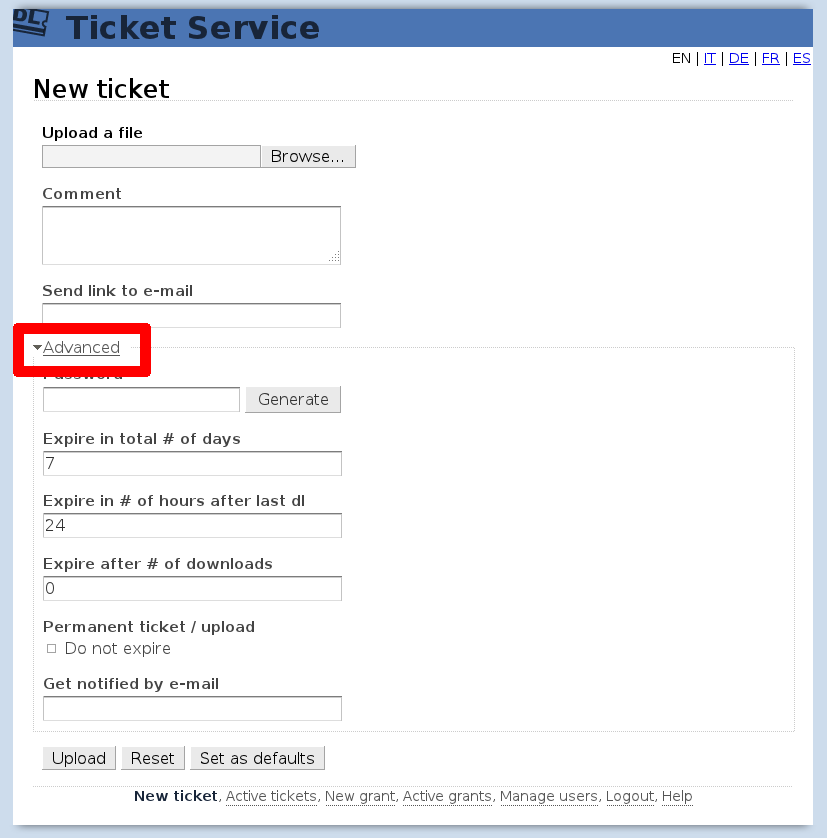
- If you want your file to never be deleted please check the "Permanent ticket" checkbox. Your file will always be available until you manually remove it.
- If you want to be notified every time someone downloads the file you can write your e-mail in the "Get notified by email" box. You'll receive notifications every time the file is successfully downloaded or removed from the server. This is great if you want extra confirmation that your email has been acted upon.
Expire in total # of hours:
Type the maximal number of hours the uploaded file is allowed to be kept on the server. After this period is passed the file will be deleted from the server whether is was downloaded or not.
Expire in # of hours after last dl:
Type the number of hours the uploaded file is allowed to be kept on the server after being downloaded. Another download will extend the lifetime of the ticket for the specified number of hours. After this period is passed without activity, the file is be deleted from the server.
This feature, when used with a long period (days or weeks), allows "hot" tickets to be kept alive only until used, and be deleted automatically afterward.
When used with a short period (24 hours or less), allows to remove the ticket as soon as being downloaded, allowing the recipient some margin to download the file more than once.
Expire after # of downloads:
Type the number of times the uploaded file is allowed to be downloaded in total. After this amount is reached the file will be deleted from the server. Handy if you need to ensure the file is downloaded just once from a single person.
If at least one of these parameters expires the file will be deleted. You can set any parameter to "0" to disable the condition.